

Contents
- How to set up a conversion goal in GA4 the way it is understood today
- A conversion goal in GA4 is an important action marked for the system to prioritize in reports.
- GA4 has switched to key events, so conversion goal setup must follow the new interface.
- What are the minimum steps to set up GA4 conversion tracking correctly the first time?
- What are the common mistakes when setting up conversions in GA4, and how do you fix them?
- What should you prepare before creating a conversion so the data does not go wrong?
- Ways to set up a conversion goal in GA4 for different scenarios
- How to mark a conversion and adjust the setup after creating it
- Common mistakes that make GA4 conversions wrong or fail to show data
- How to check conversion data in GA4 reports to know whether it is working correctly
- When should you connect GA4 with Google Ads or seek deeper support?
- Frequently asked questions about how to set up a conversion goal in ga4
If you need a way to set up a conversion goal in GA4, it really means flagging an important event to measure valuable actions such as purchases, form submissions, or visits to a thank-you page. For store owners, marketers, or fanpage admins, the hardest part is not creating the goal, but choosing the right event, marking it correctly, and checking whether the data has been recorded yet. This article goes straight into common scenarios, from how to create a conversion event in GA4 to how to check reports and avoid configuration errors that skew the numbers.
How to set up a conversion goal in GA4 the way it is understood today
A conversion goal in GA4 is an important action marked for the system to prioritize in reports.
If you want to measure forms, orders, call buttons, chat buttons, or thank-you pages, create the event first and then mark it as a conversion in GA4.
- Go to Admin >Events in GA4 to check whether the event is firing with the correct name.
- Create or confirm the event using Google Tag Manager or by adding it directly on the website, then try submitting a form or completing an order to see whether the event appears.
- Once the event is working properly, go to Admin >Key events and turn on the switch for that event.
- Wait for the data to update in reports, then cross-check with DebugView or Realtime to avoid marking the wrong event.
For example, if the thank-you page has an event named `generate_lead`, you should only mark `generate_lead` after you have fully tested one real form submission. If you mark it too early, GA4 may record inaccurate data from the first faulty firing.
GA4 has switched to key events, so conversion goal setup must follow the new interface.
GA4 now uses key event to refer to important actions, while many older documents still call them goals or conversion events.
So if you search using the old Universal Analytics approach, it is very easy to click the wrong menu from the start.

The safest approach is to open the correct Events section, confirm the event name, and then mark it as a key event once it is stable.
For example, orders usually use `purchase`, while consultation forms may use `generate_lead` or a separate custom event name.
If you want to track a call button, use a clear event name like `click_call` instead of something vague like `click`.
What are the minimum steps to set up GA4 conversion tracking correctly the first time?
You need to follow 3 main steps: create the event, check the event, then turn on the key event.
- Step 1: Identify the action to measure, such as `purchase`, `generate_lead`, `click_whatsapp`, or `click_call`.
- Step 2: Create the event in GA4 or through Google Tag Manager, then perform the action on the website.
- Step 3: Go to Admin >Key events, turn on the correct event name, and check again in Realtime.
If you are doing this for a thank-you page, make sure the thank-you URL is not too easy to access directly, because that can inflate the numbers. If you are doing it for a form, test at least one successful submission and one failed submission to distinguish a real event from a mistaken firing.
What are the common mistakes when setting up conversions in GA4, and how do you fix them?
The most common mistake is marking a conversion before the event is stable.
The fix is to check the event name in Admin >Events, test again with DebugView, and only then turn on the Key event.
Another mistake is using the old Universal Analytics terminology and looking in the wrong place in GA4.
The fix is to switch to the current terms: Events and Key events.
If you are tracking orders, use a clearly named event such as `purchase`, not a generic name that makes reports hard to read.
What should you prepare before creating a conversion so the data does not go wrong?
To keep the cách thiết lập conversion goal trong ga4 from producing skewed data, check 3 things before clicking to mark a conversion: whether the event is actually firing, whether the point where the event occurs can be tracked, and whether the account has permission to edit GA4. If one step is missing, handle it first and then create the conversion, because setting it up incorrectly before data exists will make the reports wrong from the start.

Check whether the event has been recorded in GA4
An event should only be marked as a conversion after GA4 has recorded it at least once in the realtime report or the relevant events section. Go to GA4 Realtime, perform the action you want to measure, and see whether the event appears; if it does not, the tag usually has not fired, the event name is wrong, or the landing page has not loaded the tracking code fully. A very common sign is submitting a form but only seeing a page view, not the custom event.
Know when to use a built-in event and when to create a custom one
Built-in events are only suitable for basic behaviors such as scrolling, outbound clicks, or simple interactions; forms, buttons, thank-you pages, or orders usually need separate configuration to measure the goal correctly. For example, if you want to measure GA4 button tracking or set up a form-fill conversion in GA4, do not rush to use an existing event that has data but does not reflect the actual action. For a thank-you page, how to create a conversion for a thank-you page in GA4 is usually safer when the thank-you URL is clearly separated and not randomly accessible.
A short checklist before creating a conversion:
- Confirm the event appears in Realtime.
- Check whether the landing page, button, form, or thank-you page sends a signal to GA4.
- Only use the event that matches the goal, and do not mark a secondary event by mistake.
- Make sure the account has edit access to set up GA4 conversion events.
Ways to set up a conversion goal in GA4 for different scenarios
How to set up a conversion goal in GA4 should follow how users complete actions on the website, and only then should you choose which event to mark. If you choose the wrong scenario, the data will be skewed and hard to use for reading campaign performance. The easiest way is to divide it into 3 types: a separate thank-you page, no thank-you page but a clear button, and a form that submits without changing pages.
Use a thank-you page when registration or purchase is complete
A thank-you page is the clearest conversion signal because it only appears after the user completes the action. For this setup, creating a conversion for the thank-you page in GA4 is usually simple and less error-prone than relying on scattered clicks.
This approach works best when the website has a separate URL after registration, ordering, or leaving information. For example, /thank-you or /dat-hang-thanh-cong only opens after the form is submitted successfully or the order is completed. In that case, GA4 order tracking will be cleaner because every visit to this page has conversion meaning.
Applicable checklist:
- Identify the exact URL reserved only for completed actions.
- Block free access if the page can be reached directly from the menu or by typing the URL.
- Mark the event tied to the thank-you page view as a conversion.
- Check the conversion count again by creating a test order.
The easiest mistake to make is leaving the thank-you page public. In that case, users revisiting the URL, refreshing the page, or bookmarking it will inflate the numbers. If conversions rise but real orders do not, this is the first error to check.
Mark button clicks, calls, chats, or sign-ups as conversions
This method is used when the main goal is a lead and the important action happens on a click, not on a landing page. With GA4 button tracking, you can set up GA4 conversion events for buttons such as submit form, call, chat, or download a document, as long as they truly reflect a conversion intent.
It is suitable for landing pages, service websites, traffic-driving fanpage pages, or pages that only need users to leave a lead. For example, the “Register for consultation” button can be a key event, while the “Learn more” button should not be marked because it is only a research step.
Three points to check before setting it up:
- Does the event name match the action you want to measure?
- Does the trigger condition capture the correct button?
- Will it be counted multiple times if the user clicks more than once?
If a button only supports secondary navigation, it should not be included as a conversion. Doing so will make the way you create a conversion event in GA4 drift away from the real goal and make the conversion funnel harder to read.
Set up form tracking when there is no separate thank-you page
This approach fits when the form submits but the website does not move to a new page. Setting up a form-fill conversion in GA4 usually relies on a form submit event if the system or tracking layer can record that action.

The process should follow 3 steps:
- Check whether the form generates a submit event in DebugView or the event report.
- If it does, mark that event as a conversion and test again with one real form submission.
- If there is no event, check the tracking layer, how the form renders, and the website configuration before setting it up further.
This is one of the easiest situations to get wrong when setting it up yourself because many forms show a “submitted successfully” message on the same page but do not push any event data. In that case, GA4 conversion tracking will record nothing even though the user has completed the action. If you run into this case, do not mistakenly mark the send button click; prioritize the successful submit confirmation event so the data stays cleaner.
How to mark a conversion and adjust the setup after creating it
Marking a conversion in GA4 means turning on the key event for an existing event, and only adjusting it when truly necessary to avoid distorting historical data. The safest approach is to check the correct event, enable the conversion from the existing event, and only create a new one when the action you want to measure does not yet exist in GA4.
Turn on a conversion from an existing event instead of recreating it from scratch
Choose an existing event if it already reflects the action you need to measure, such as form_submit, purchase, or generate_lead. Go to Admin > Events, find the event you need, and then turn on the conversion/key event status instead of creating a new name. This keeps the data cleaner because the same action goes into one measurement source.

- Only recreate it if the old event is firing with the wrong condition or in the wrong context.
- Do not set up multiple nearly identical events, because that can create duplicate key events.
- If it has already been imported into Google Ads, changing the naming afterward can make GA4 conversion tracking harder to compare.
When do you need to create a new conversion with a custom setup?
Create a new conversion when GA4 does not yet have a suitable event, or when you need a narrower condition, such as counting button clicks only on one landing page. In that case, use a custom event configuration in GA4 to measure the conversion, then check the event name and parameters again before turning on the conversion.
A common situation is the same button appearing on multiple pages. If you only want to measure the thank-you page, separate the logic clearly for the custom GA4 event instead of grouping everything together and filtering later. With GA4 conversion event setup, renaming an event should only be done before the data becomes stable; after many sessions have been recorded, changing the name will make historical reports harder to compare.
Common mistakes that make GA4 conversions wrong or fail to show data
GA4 conversions are often wrong or missing because the event has not fired, the wrong event was marked, the configuration is duplicated, or the data is being read incorrectly. When you handle issues in the order of symptom → cause → action, you can tell whether you are dealing with a configuration error, a measurement error, or just reporting delay.
No conversion appears even though it has been enabled
If no conversion appears even though it has been enabled, it is usually because the event has not occurred after being flagged as a key event, or the trigger condition is wrong so GA4 has not received the signal yet. A very common mistake is setting it up based on a thank-you page, but the actual URL differs by one character, for example missing the trailing /, so the how to set up a conversion goal in GA4 looks correct but there is no data.
The quick fix is:
- Open DebugView or the Realtime report to see whether the event is firing.
- Check the event name, trigger condition, and landing page again to make sure they are correct.
- If you are using a thank-you page, go to the exact thank-you URL and test one real form submission.
Many people also check the wrong reporting area, while conversions only begin to appear after the event has fired. If there is no event yet, do not rush to change many things at once; first confirm it again with GA4 event checking.
Duplicate conversions or incorrect conversion counts
Duplicate conversions or incorrect conversion counts usually happen when one action fires the event multiple times, or when multiple triggers are attached to one button, form, or thank-you page. In that case, duplicate key events appear, and conversion numbers rise abnormally even though the real action has not changed.
The way to check conversion data should follow three steps:
- Click exactly once and observe whether the event repeats in DebugView.
- Compare the rules for each trigger, especially button clicks, form submits, and thank-you page page_view events.
- Turn off duplicate configurations and keep one primary recording source for the same goal.
For GA4 button tracking, it is better to use one clear logic instead of many layers of event capture. If a form has both a submit event and a page_view on the thank-you page, choose one primary recording method to avoid double counting.
You need to understand how GA4 records conversions to read the numbers correctly
You need to understand how GA4 records conversions to read the numbers correctly because key event rate and GA4 conversion rate do not always match user expectations. Data has a delay, some conversions should be counted once per user, while some actions can happen multiple times if the goal is repeated interaction.
When comparing GA4 conversion data, do not compare it mechanically with another platform if the event setup is different. For example, setting up order tracking in GA4 is often different from how ad platforms count conversions, so the numbers may differ even when nothing is wrong.

Checklist for reading the numbers correctly:
- Determine whether the conversion should count once or multiple times per user.
- Check the reporting delay.
- Compare using the same measurement conditions before drawing conclusions.
- If needed, look at the funnel instead of only the total number.
How to check conversion data in GA4 reports to know whether it is working correctly
The way to check conversion data in GA4 reports to know whether it is working correctly is to compare 4 layers: the event, the key event status, the report, and the real user behavior. Doing these 4 steps correctly will tell you whether tracking has been recorded properly or has only been created in the interface.
Check whether the event fired with the correct name
How to set up a conversion goal in GA4 starts with confirming that the event actually occurs. Go to Reports > Engagement > Events or Admin > Events to see whether the event name matches the configuration. For example, if a successful form submission creates the event `generate_lead`, the report must show that exact name, not `lead_form` or `contact_submit`.
If you do not see the event yet, try a real action on the site: submit a form, place a test order, or click the button to complete payment. On WordPress websites, many issues come from attaching the wrong trigger in GTM or using different event names in GTM and GA4. When the names do not match, the conversion will not count even if you have turned on the marking.
Confirm that the event has been marked as a conversion
Checking conversion data in GA4 reports does not stop at seeing the event appear. You must open Admin > Events and check the Mark as key event column or the corresponding conversion status. If the event is in the list but not enabled, GA4 only records it as a regular event.
A common example is creating the event `purchase` but forgetting to turn on the key event. In that case, the Events report still shows counts, while the Conversions report may be zero or not updated yet. Turn on the correct event to track, then wait for the data to finish processing before drawing conclusions.
Cross-check the Conversions report and the test time
The most accurate way to check conversion data in GA4 reports is to compare the test time with the time the data appears. Go to Reports > Engagement > Conversions to see whether the number of conversions has increased. If you tested at 10:05 but the report only updated at 10:10, that may simply be processing delay.

Check 3 signs at the same time: the event increases, the key event increases, and the thank-you page or real order appears exactly once. If you test 3 times but the report only increases by 1, it is usually because of page refreshes, double-clicking the button, or a trigger condition that is too broad. When the numbers are far off, you should also check DebugView and the GA4 tag in GTM.
Compare with real behavior to know whether it is working correctly
Conversion data is only trustworthy when it matches real user behavior. For a lead form, one successful submission must go through the form, the thank-you page, and the key event. For an order, there must be an add-to-cart step, payment, and order completion.
If GA4 records a conversion but the CRM or email has no lead, the problem is usually in the form submit or webhook. If the order exists in the sales system but GA4 does not record it, check the thank-you page, trigger conditions, and consent mode again. Only when both sides match can you conclude that tracking is working correctly.
When do you need to check more deeply?
You should open the funnel or source/medium reports when conversions are unusually low or drop off at a fixed step. For example, the report may show many people entering the product page but very few reaching checkout. In that case, look at the funnel in GA4 to see where users drop off before optimizing.
For a small shop, you only need to track 3 things: the event fires, the key event is enabled, and the report increases correctly after testing. If all 3 match, the conversion data in GA4 is working properly.
When should you connect GA4 with Google Ads or seek deeper support?
You should only connect GA4 with Google Ads when your conversions are already being measured correctly and you need that data to optimize ads. The goal is to import conversions, not to connect things just for the sake of it. If tracking is still off, linking it will only make the data harder to read.

When should you import conversions into Google Ads?
You should import conversions when you are running ads and need Google Ads to read GA4 conversion signals to optimize bids, keywords, or ad groups. This works well for shops that already have purchase events, form submissions, or completed registrations. In that case, connecting GA4 with Google Ads helps synchronize web measurement data with advertising data instead of measuring separately in two places.
When tracking becomes too messy, review the configuration instead of adding more
If GA4 conversion tracking already shows duplicate events, missing data, or incorrect triggers, fix the root cause before importing anything. A common example is a thank-you page being installed twice, or the conversion event only appearing for part of the traffic. In that case, adding more setup will not save the data. For complex GA4 conversion event setups, it is better to ask someone experienced to review the event flow, tags, and account permissions so you do not damage the data that is already running.
Frequently asked questions about how to set up a conversion goal in ga4
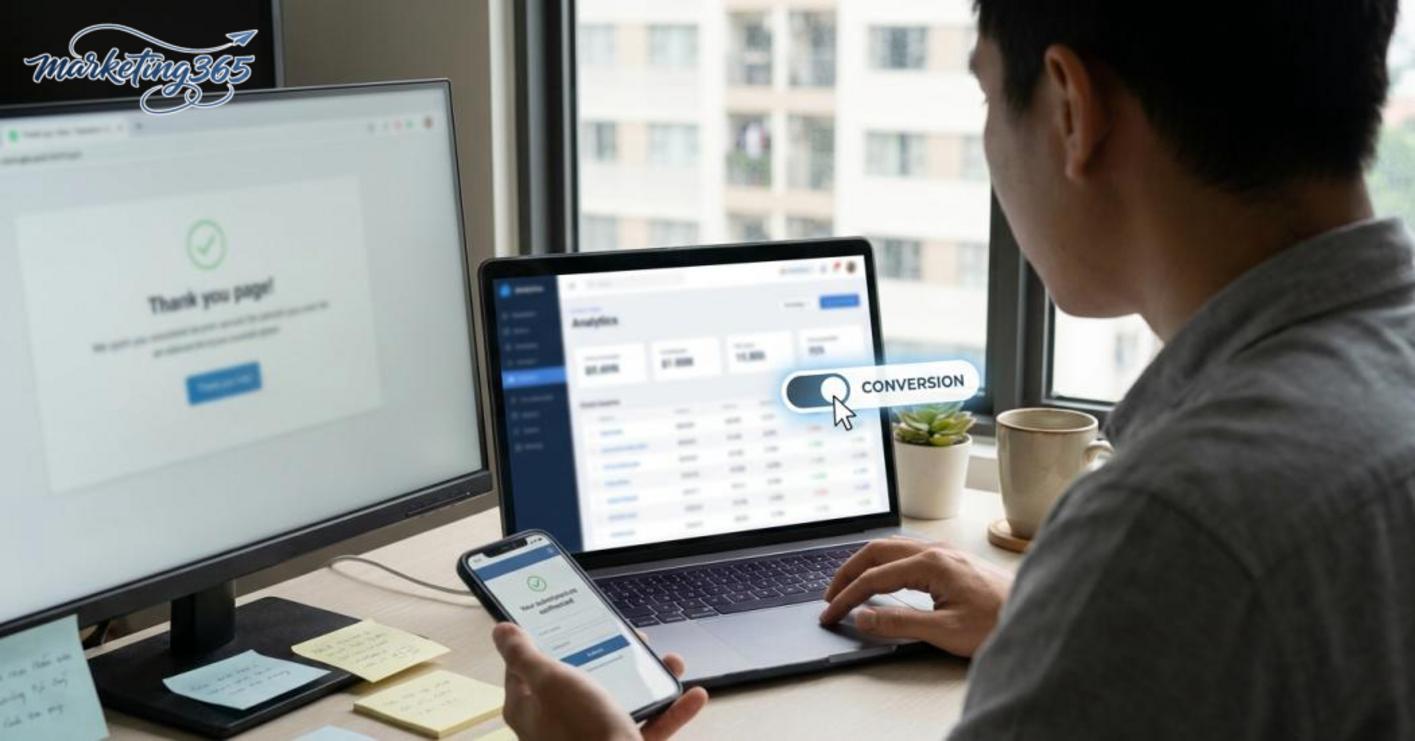
How to set up a conversion goal in GA4 is the part where you mark important events so GA4 records them as conversions instead of just counting them as regular events. Once marked correctly, you can see successful form submissions, button clicks, orders, or thank-you pages in the conversion reports.
- How is it different from a regular event? A regular event only records that an action happened. A conversion is an event marked for business goal measurement, so it appears in the key events group and conversion reports.
- Do I need to create a new one? Not always. If GA4 is already collecting the correct event automatically, you only need to go to Admin > Events and turn on the conversion marking. Create a new event only when that action does not already exist.
- How long until data appears? After turning on the marking, the data usually does not appear immediately at the moment you act. Check again with DebugView or the event report after some real recording time, especially when you have just added tags to a form or button.
- Can it be used for forms, buttons, and orders? Yes, if the event is set up correctly. For example, a form should fire on successful submission, a button should fire on a valid click, and an order should prioritize a completed transaction event or thank-you page rather than a click on the payment button.
A common mistake is marking too many small events such as menu views, scrolls, or supporting clicks. This makes the reports noisy and harder to optimize. Keep only the actions directly tied to the goal, such as form submissions, purchases, registrations, or bookings.
For the latest official guidance, you can also refer to Google Analytics Help.
You can also find more hands-on marketing guides at https://marketing365.vn.
Content from marketing365 is built for SMEs, online shop owners, and new marketers.
📖 Related concept: What is GA4