

Contents
- What to prepare before writing SEO-friendly posts on your phone
- How to write SEO-friendly content on your phone while keeping it easy to read
- How to publish SEO-friendly posts on WordPress or a management channel using your phone
- Quality checklist before publishing
- When to stop writing on your phone and switch to a computer
- Frequently asked questions about how to write SEO-friendly posts on your phone
If you want to know how to write seo-friendly posts on your phone, focus on what works well on a small screen: outlining, drafting, setting titles, adding images, checking spelling, and doing basic publishing. This approach is ideal for shop owners, fanpage admins, and marketers who need to work quickly without a computer. However, steps such as reviewing structure, checking links, previewing the layout, and optimizing images should still be done carefully to avoid publishing errors. The goal is to publish quickly, accurately, and safely for your website or digital channel.
What to prepare before writing SEO-friendly posts on your phone
Writing SEO-friendly posts on your phone requires preparing 3 things in advance: an outline, data, and a safe place to draft. The phone is only a typing tool; without keywords, the article goal, and reference sources, the content can easily become unfocused or lose formatting when published.

Prepare your outline and keywords before opening your phone to write
A clear outline helps you write faster and prevents you from stopping mid-sentence to think of ideas. An effective approach is to divide the article into 3 layers: introduction, main points, and final review.
- Write down the main keyword and 2–4 secondary keywords in the right context in a separate note. For example, if you are writing about how to write SEO-friendly posts on your phone, define whether the article’s goal is to instruct, explain, or troubleshoot.
- Sketch 3–5 main points in a natural reading order. Each point should have only one task, such as preparing data, choosing an app, and then entering the content.
- Mark in advance where to insert images, tables, or examples. With the SEO-friendly writing process, note any section that needs illustration so you do not forget while drafting on a small screen.
- Leave a separate final check step for the title, opening paragraph, links, images, and spelling errors.
Once you have the content outline, you will write on your phone as if following a checklist, not trying to figure out each paragraph on the fly.
Choose the right app and drafting environment to avoid losing content
The best app is one that auto-saves, makes copy-paste easy, and does not break formatting when switching back and forth. For beginners, a notes app or Google Docs mobile is often safer than a web editor if the connection is unstable.
If you need to draft quickly, a notes app is very convenient but lacks spell check and can easily distort formatting when pasted into a website. If you are writing a long article, Google Docs mobile is better because it saves continuously and makes it easy to review each paragraph. If you are publishing directly to a website, try a short draft first to see whether the title, images, and line breaks display correctly.
One way to reduce risk is to save an extra backup copy in your notes after finishing. When doing how to publish SEO-friendly posts on your phone, do not just choose the fastest place to type; choose the place least likely to lose content.
How to write SEO-friendly content on your phone while keeping it easy to read
SEO-friendly content is easiest to read on a phone when you follow the right order: title, intro, body, then a final check of spacing in each paragraph. A small screen only becomes a problem when you cram in too much text; if you keep sentences short, use clear line breaks, and place keywords correctly, the article will still feel neat and natural.

Write titles and intros that are concise, clear, and match search intent
An SEO title on your phone needs to reflect the topic accurately, include the main idea, and be understandable at a glance. For “how to write SEO-friendly posts on your phone“, the title should prioritize the main keyword near the beginning, while the intro should clearly state what the reader will be able to do after reading the article.
A simple method is to write 3 title versions on the small screen and choose the shortest one that still conveys the full idea. For example, instead of stretching it into a long, layered sentence, keep the title focused on one main idea and one clear benefit. The intro should answer immediately: this article helps you write, optimize, and publish content on your phone without messy paragraphs or keyword stuffing.
Quick checklist:
- The title accurately reflects the main topic.
- It includes the main keyword without stuffing.
- The intro introduces the exact problem the reader needs to solve.
- Avoid a vague opening or repeating too much background.
How to place keywords, headings, and paragraphs without sounding forced
Placing keywords naturally means putting them in the right context, not forcing them into every paragraph. When writing SEO content on your phone, you should divide the article into small sections, with each paragraph serving only one purpose: explaining, instructing, or concluding.
For SEO-friendly headings, arrange H2/H3 tags according to how readers scan quickly on smartphones: one heading for one idea, without packing in too much content. If you need to repeat a semantic keyword, rephrase it with a close variation such as guide to writing SEO-friendly posts on your phone, writing SEO content on your phone, or how to optimize SEO-friendly articles on a smartphone. This makes the content feel more natural and easier to read when scrolling with your thumb.
A simple process:
- Write the main idea for each paragraph first.
- Place one keyword in the opening paragraph or the main explanatory paragraph.
- Review and remove repeated exact phrases.
- If a sentence takes up more than two lines on the screen, split it into two sentences.
How to add images, captions, and basic formatting on your phone
Images, captions, and basic formatting help articles read faster because mobile users tend to scan in chunks rather than read continuously. When inserting images, choose ones that are truly relevant to the content and prioritize visuals that illustrate the step being discussed rather than decorative images.
While publishing, check three things again: whether the image displays without cutting off details, whether the caption accurately describes what the image shows, and whether bold text is enough to guide the reader’s eye. With SEO-friendly image insertion on your phone, you do not need too many images; usually, only the sections that explain a process or a potentially confusing point need one. Bullet lists should also be used when listing steps, because they make the article feel more open on a small screen.
Checklist before publishing:
- Each image matches one idea.
- Captions are short, clear, and not overly wordy.
- Bold text is used only to emphasize key points.
- Do not use too many formatting styles in the same paragraph.
How to publish SEO-friendly posts on WordPress or a management channel using your phone
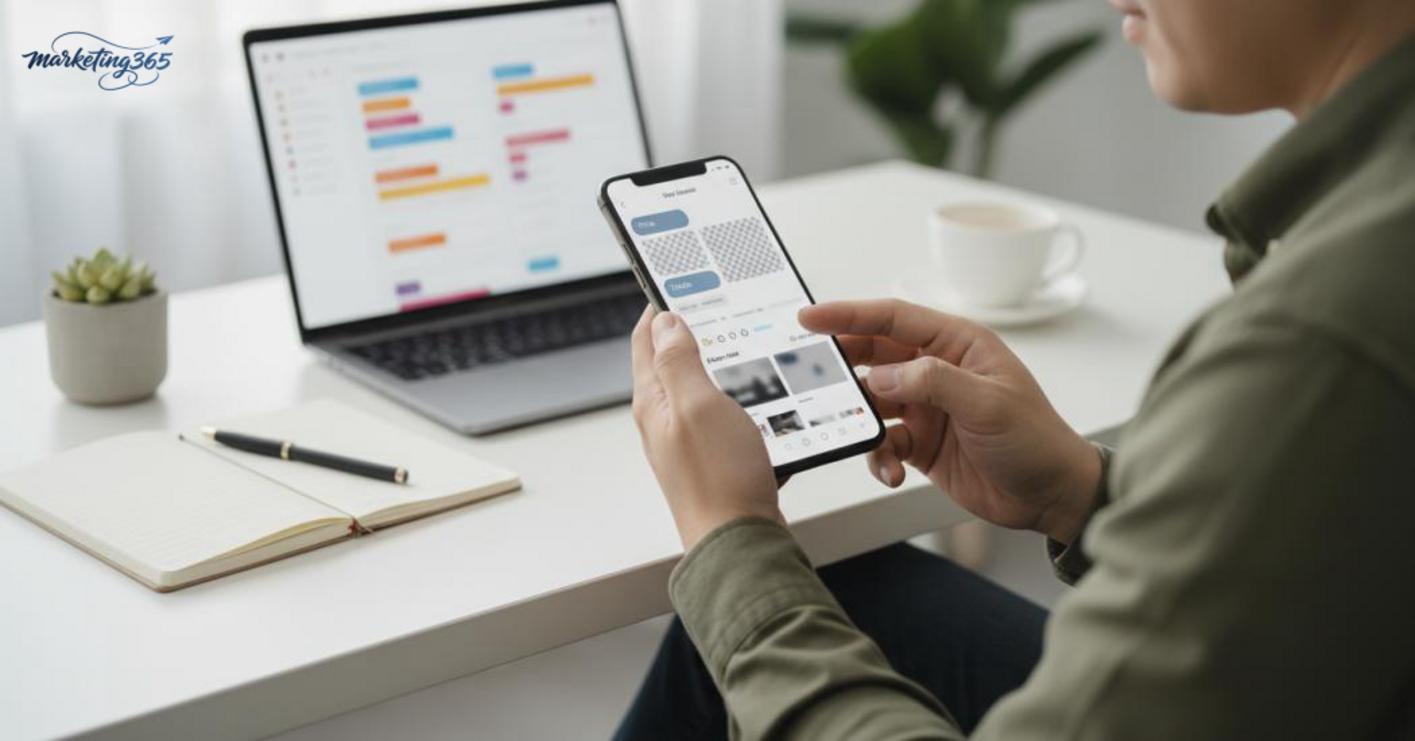
Publishing SEO-friendly posts on your phone is the final step after drafting, including checking data fields, previewing the display, and only hitting publish when every detail is correct. If you handle this carefully, you reduce the risk of missing a slug, choosing the wrong category, broken images, or a title being cut off on a small screen.
Check the slug, category, and tags before publishing
The slug, category, and tags are three fields you should review before publishing so the article does not end up with a broken structure or become difficult to manage later. With how to write SEO-friendly posts on your phone, open the correct post editing screen and check each field in order, rather than just looking at the title and publishing immediately.
Read more: How to Optimize Google Featured Snippets Effectively
Read more: How to Optimize SEO-Friendly URLs for Your Website
- Shorten the slug so it is clear and includes the main keyword if it feels natural. Avoid making the slug too long or including strange characters such as Vietnamese diacritics, spaces, or extra symbols.
- Choose the correct post category based on the main topic. If the article is about publishing techniques, do not mix it with sales content or news.
- Only add post tags if your system has a clear tagging rule. If there is no rule, leaving them blank is safer than adding duplicate or confusing tags.
A very common mistake when publishing WordPress posts on a phone is that the writer finishes editing the content but forgets the metadata. The result is that the article has the right text, but it becomes difficult to filter, group, and organize properly in the admin area.
Preview on your phone to catch display errors before publishing
Previewing the article on the phone screen itself is the fastest way to catch broken line breaks, misaligned images, hard-to-tap links, and headings that are too long. When optimizing articles on a smartphone, what matters is the real reading experience, because a small screen reveals display issues more clearly than a desktop interface.
- Open preview mode and read from start to finish like a real user. If the title is too long, the image covers the opening paragraph, or the list items are too tightly packed, fix it right away.
- Check the featured image, in-article images, and spacing between paragraphs. Images cropped incorrectly or not aligned properly often make the article look unprofessional.
- Tap each link, see whether the headings are easy to read, and scroll quickly to spot any paragraph that is too dense. If it is hard to read on your screen, readers will leave early too.
The SEO-friendly publishing process on your phone for beginners should stop at the preview step if you find major display issues. Fix them first, then publish to avoid having to edit repeatedly after the article is already live.
Quality checklist before publishing
The pre-publish checklist should be used as a final gate to review content, formatting, and links in 3–5 minutes. The most effective method is to check in order from what is immediately visible to what affects SEO and the mobile reading experience.

Common mistakes when writing and publishing on a phone
Publishing mistakes on a phone usually come from moving too fast: forgetting to save a draft, copy-paste breaking formatting, missing headings, images with the wrong aspect ratio, or pasting the wrong link. Just one of these errors can make the article look unprofessional or cause display issues on a small screen.
- Forgetting to save a draft: you leave and come back, and the newly added content is gone. The quick fix is to save short sections before switching apps.
- Copy-paste errors: fonts, font sizes, and line breaks become messy. Paste as plain text if your editor supports it.
- Missing headings: the article is long but has no scanning points. Check whether there is a major idea every 2–4 paragraphs.
- Wrong image ratio: the image cuts off text or distorts the frame. Preview it in mobile mode before publishing.
- Entering the wrong link: it points to the wrong page or has the wrong slash. Tap each link to test it before publishing.
How to check whether an article is truly “SEO-friendly”
An article is considered SEO-friendly when the keyword is placed in the right spots, the structure is clear, the paragraphs are easy to read, and internal links are used appropriately. SEO content optimization is not about stuffing keywords; it is about helping readers understand quickly and move to the next relevant point.
- The main keyword appears in the title, opening paragraph, or a natural heading.
- There is a direct answer in the first paragraph, without beating around the bush.
- There are bullet points or images where steps need clarification.
- No paragraph is too long, especially on a smartphone.
- SEO article checking is done by skimming for 30 seconds: if the flow still makes sense, the structure is in good shape.
- If there is an internal CTA, place it in the right context, not in the middle of an instructional paragraph.
When you review using this framework, you will know whether the article is clean enough to publish or still needs edits before going live.
When to stop writing on your phone and switch to a computer
You should stop writing on your phone and switch to a computer as soon as the task starts increasing the risk of formatting errors, structural issues, or excessive time loss. With how to write SEO-friendly posts on your phone, mobile works well for editing titles, updating a few short paragraphs, and publishing quickly; but tasks that require comparing multiple tabs, batch image editing, or deeper technical optimization should be moved to a computer to avoid hard-to-fix mistakes.

Signs the article is too complex to handle well on mobile
If you need to revise a large outline, drag and drop many content blocks, or insert images repeatedly, stop working on the phone. Errors that should be fixed immediately on mobile are spelling, missing titles, and changing a few description lines; but article structure, long tables, cross-links, and detailed SEO optimization should be postponed. When you need to open multiple tabs to compare documents, mobile often causes you to miss details and save the wrong version.
When to ask a specialist for help
You should ask for expert help when the task affects the site structure, publishing system, or data that could be lost if edited incorrectly. Common cases include editing templates, fixing image display errors, optimizing content across multiple pages at once, or reconfiguring the publishing workflow. If a change could affect the entire website, stopping self-editing on your phone is safer and saves more time.
Frequently asked questions about how to write SEO-friendly posts on your phone
Yes, you can write SEO-friendly posts on your phone if the article is short, the outline is clear, and you are willing to do a final review on a larger screen. For articles from 600 to 1,200 words, a phone is enough to draft, edit the title, and save the draft quickly.

- Use your phone when you need to publish quick news, service descriptions, long captions, short FAQ posts, or promotional updates.
- Do not use your phone for articles with many tables, many internal links, or when you need to review H1, H2, meta title, and meta description structure.
- The safest method is to draft in Google Docs, Notion, or a notes app with auto-save, then move to WordPress for final editing.
If you are publishing WordPress posts on your phone, open the mobile editor and enter the title, opening paragraph, headings, and images in order. For example, with an 800-word service article, you should check the slug, H2 tags, and featured image before hitting publish. Common mistakes include images cropped at the wrong ratio, misaligned line breaks, or accidentally turning an H2 into a normal paragraph; the fix is to preview the article in a mobile browser and reopen the URL after publishing.
Google Docs mobile is often more suitable when you need to type quickly with one hand and have auto-save every few seconds. Notion works well for people who already have a content checklist, while Evernote is suitable for saving short ideas. If the article includes image alt text, internal links, or a CTA, you should finalize the content in a draft first and then paste it into the CMS to reduce formatting errors.
A simple workflow for beginners is: 1) create an outline on your phone, 2) write each short paragraph in Google Docs, 3) review the title, links, and spelling, 4) publish as a draft, 5) preview on mobile, then publish. This helps reduce lost text, formatting errors, and missing SEO descriptions.
In short, how to write SEO-friendly posts on your phone works well for drafting and quick publishing, but you should still have a final check on a computer or mobile browser before going live.
You can find more practical marketing guides at https://marketing365.vn.
Content from marketing365 is created for SMEs, online shop owners, and beginner marketers.