Contents
- What is a free QR code generator and what is it suitable for?
- How to choose a free QR code generator for marketing needs
- How to create a free QR code correctly from start to finish
- Common mistakes that make QR codes unscannable or hard to scan
- How to use QR codes in real marketing while keeping accounts and data safe
- How to decide on the right tool: start free or upgrade?
- Frequently asked questions about free QR code generators
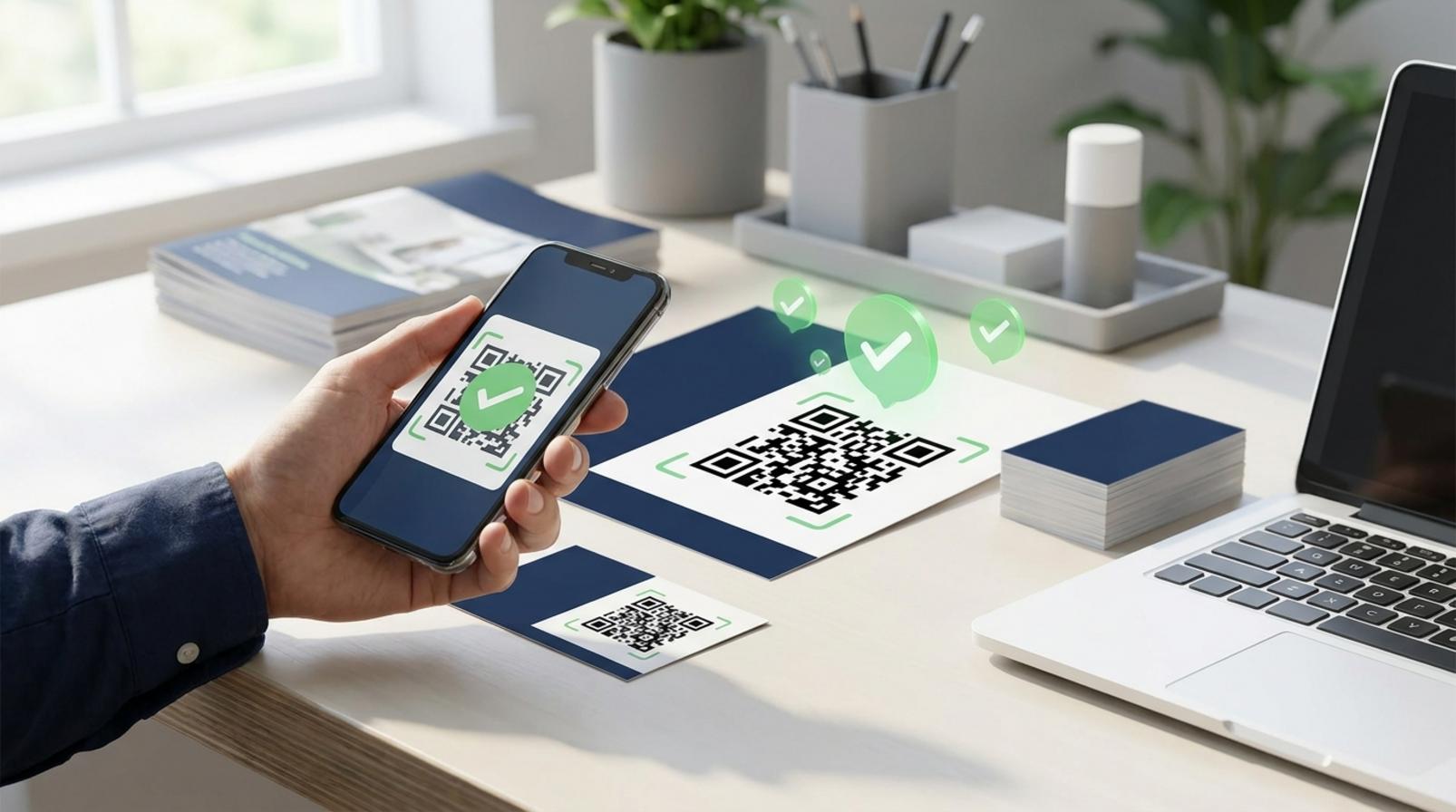
When you need to create QR codes for links, Wi-Fi, PDFs, or business cards, marketers and shop owners often need a fast, easy-to-scan, and safe way to print or publish online. The free QR code generator tools in this group are suitable for these tasks, but not every tool delivers stable results. The important thing is to check the correct data type, see whether the QR scans well on a phone, and then customize the color or logo if needed. This section helps you choose, use, and avoid common mistakes so your QR works as intended from the very first try.
What is a free QR code generator and what is it suitable for?
A free QR code generator is software or a website that lets you enter content and then outputs a QR code for others to scan with a phone. For beginners, it is enough for basic links, Wi-Fi, PDFs, business cards, phone numbers, and email, especially when you need to place it on posters, packaging, menus, sales materials, or social profiles.
The key point to understand is that free versions are usually suitable for one-time tasks or simple needs. If you only need to create a free QR code online for quick printing, sharing documents, or directing people to a fixed landing page, this is a compact and time-saving option. But if you need to change the destination after printing, track scans, or create a high-resolution QR code for repeated printing, check the limits of each free QR code generator before using it.
How is this different from making a QR code on a phone or a standalone app?
Web tools are often faster when you need to make a QR code online, download a file for printing, and store multiple codes in one place. QR code apps on phones are convenient for quickly creating a single code, but they are often weaker when it comes to history management and exporting high-quality files.
- Choose the web when you need to create many codes for one campaign, because repeated actions are faster.
- Choose an app when you only need to create and scan it immediately on the device you are holding.
- Use a manual method only when the content is very short and no customization is needed.
For marketers or shop owners, a free QR code generator website is often more suitable because it is easier to test-scan, resize, and send directly to printing.
What types of content are commonly turned into free QR codes?
The most common free QR code types are links, text, Wi-Fi, PDFs, and digital business cards, because they solve the need to share information quickly in just a few seconds.
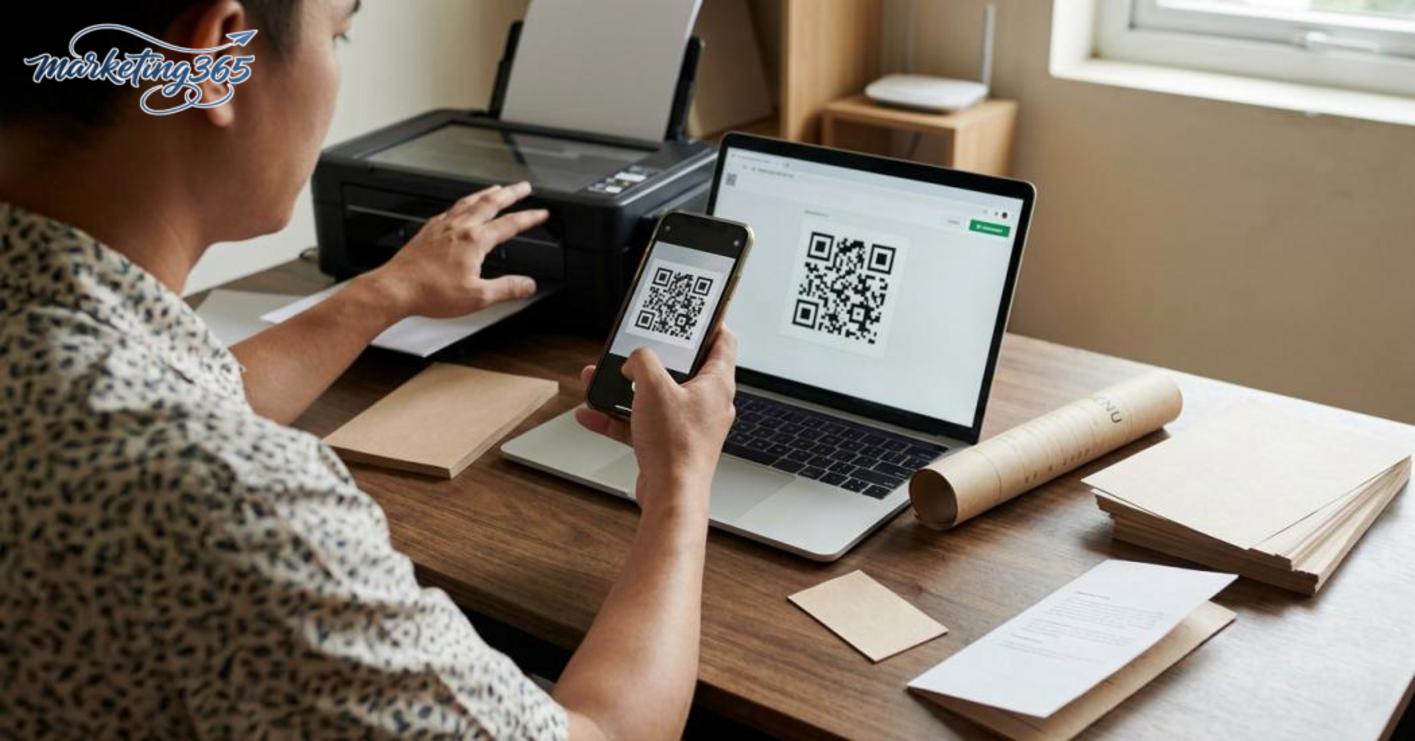
- URL/link: suitable for landing pages, sales posts, registration forms, or promotional pages; this is the most commonly used type for creating a free QR code for a link.
- Wi-Fi: lets guests join the network without typing a password, especially in cafés, stores, and small offices.
- PDF: suitable when you want to distribute documents, catalogs, price lists, or menus; creating a free QR code for a PDF document helps reduce reprinting.
- Business card/vCard: quickly saves a name, phone number, and job title to the recipient’s device; creating a free QR code for a business card is useful at events.
- Phone number and email: used when you want viewers to call or send an email right after scanning.
If the code will be placed on packaging or a poster, prioritize content that changes less often to avoid reprinting too soon.
How to choose a free QR code generator for marketing needs
A free QR code generator is best when it matches the intended use, produces a clear enough export file, and does not make printing or publishing online cumbersome. In marketing, the wrong choice usually shows up immediately during test scans, file downloads, and overly limited customization.
What to check before choosing: purpose, usage frequency, and deployment channel
Before choosing a free QR code generator, answer these 3 questions: is it for one-time use or frequent use, is the QR for print or only for digital posting, and do you need to store multiple codes for a small team. A code placed on a poster needs a different level of stability than one embedded in a social media post.
- One-time use: prioritize a quick online QR code with few steps.
- Frequent use: prioritize free QR code generator software with history saving.
- Printing: you need a sharp, easy-to-download file.
- Online use: you need fast operation that is also easy to open on a phone.
If a small team needs to create a free QR code for a link, for Wi-Fi, or for a free business card, prioritize tools that save templates and manage codes by campaign. If you only need to create a QR code for a PDF document, a free QR code generator website with clear downloads and few ads will save more time.
What features are worth having in the free version?
A free version is enough when it lets you create a QR code with safe color and logo customization, high-quality downloads, and test scans before publishing. These 4 points are enough for most basic marketing needs.
- Allows light color and logo adjustments without distorting the code.
- Has clear PNG or SVG downloads for printing.
- Supports test scanning right after creation.
- Clean interface with few steps.
If you need to create a high-resolution QR code for printing, preview the sample image at a large size first, especially when placing it on a standee or packaging. With a good QR code generator, the code still scans well when reduced for online posting and remains sharp when printed.
Signs you should avoid a free tool
A free QR code generator is not worth using if it forces registration too early, produces blurry downloads, or does not allow immediate test scanning after creation. These are signs that the tool prioritizes collecting data over helping you complete marketing work.
- Confusing interface, with many steps before the code is generated.
- Does not clearly explain how data is stored.
- Only allows low-quality exports.
- Too little customization; adding a logo breaks the code.
If a free QR code generator website does not clearly explain storage or later code editing, avoid using it for a real campaign. With free QR code generator software, do not choose it just because it has many features; check whether the code scans reliably with a phone camera before rolling it out at scale.
How to create a free QR code correctly from start to finish
A free QR code generator helps you quickly create a QR code for the right purpose, check it before real use, and reduce scanning errors. The safe way is to follow the correct order: choose the content type, enter accurate data, customize just enough, test-scan, and then download.
Step 1: Choose the right QR type for the intended use
Choosing the right QR type from the start reduces the need to edit content or change formats later. If you are linking to a landing page or article, use a QR for a link; if you are handing it out to customers in a shop, choose a QR for Wi-Fi; if you are printing a catalog or menu, prioritize a QR for PDF; for business cards, use vCard; for short notices, use text. For those who need to create a free QR code for a link or create a free QR code for Wi-Fi, define the destination clearly before opening the generator page.
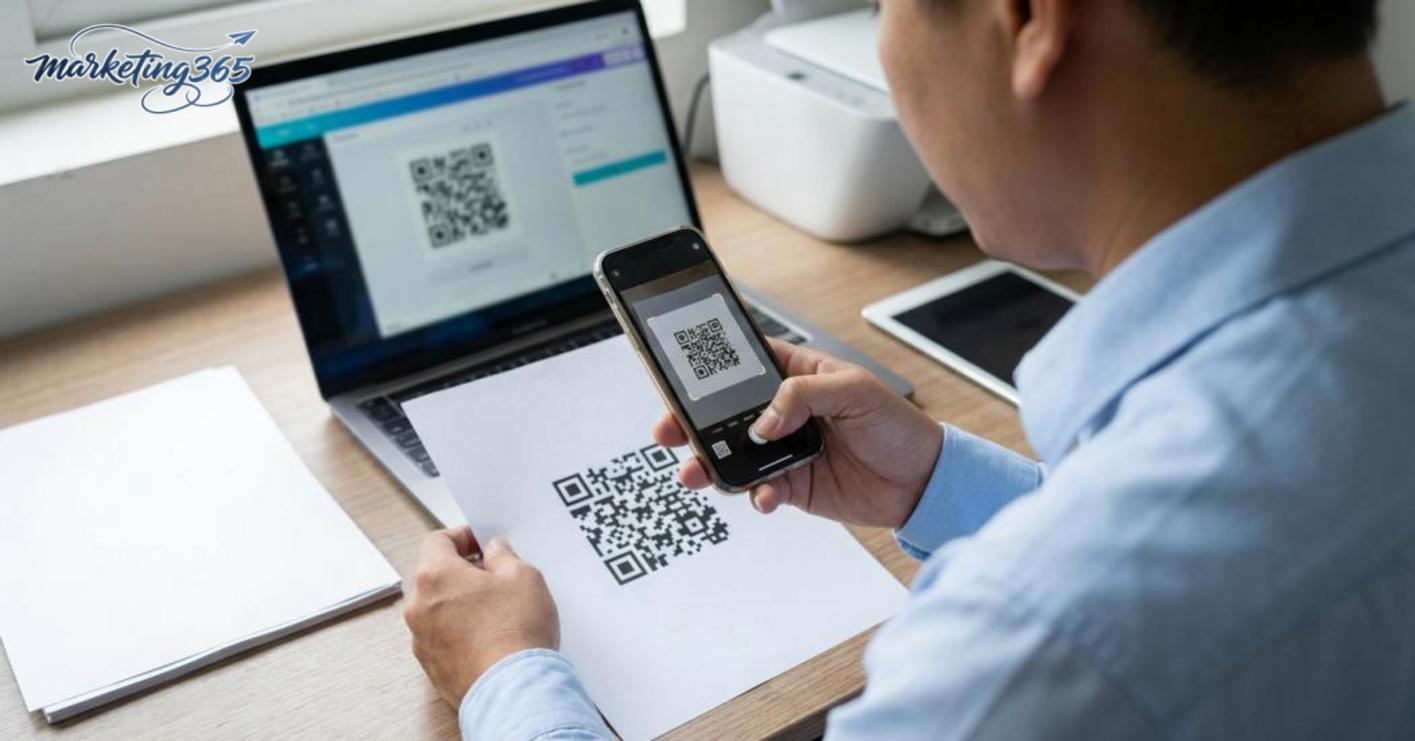
Quick checklist before moving on:
Read more: Free Video Design Software: How to Choose and Use It
- Is this QR meant to open a link, share Wi-Fi, or download a document?
- Does the content need frequent updates?
- Will the QR be used on a screen or printed on paper?
Step 2: Enter the content and check accuracy
Entering the correct content is the easiest step to get wrong when making a QR code online. Paste the full URL, keep https intact, remove any extra spaces at the beginning or end, and double-check every character in the phone number, email, or address if you are creating a business card. If you enter short text, keep Vietnamese diacritics correct; if there is a phone country code, write it in full so the scanner does not misread it. A good QR code generator usually shows a preview of the content, but you should still review it yourself with a checklist.
- Does the link open directly?
- Are there any strange characters or extra spaces?
- Are the phone number, email, and company name correct?
Step 3: Customize just enough so scanning is not affected
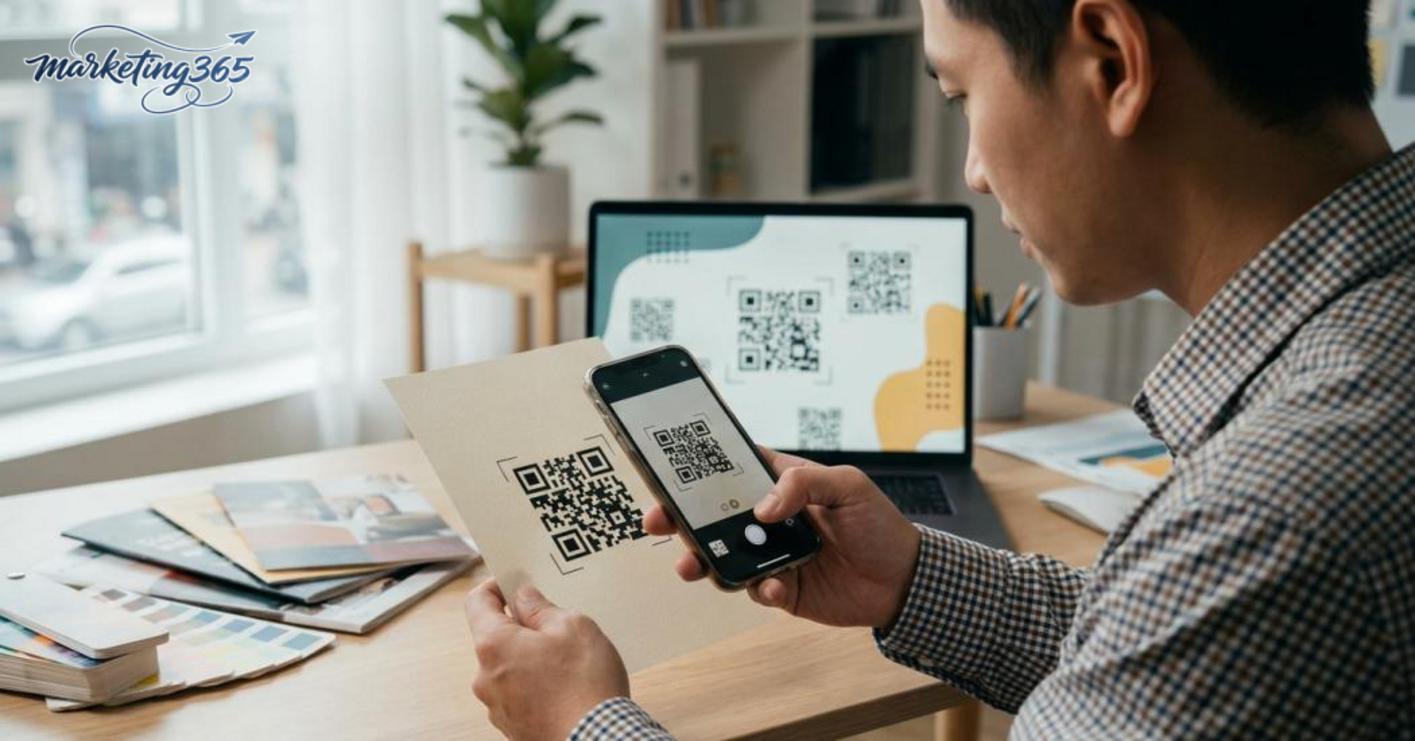
QR customization should stop at a safe level so it does not break scan structure. When creating a QR code with color and logo customization, prioritize colors with strong contrast between the background and the code; avoid busy backgrounds, strong gradients, or a logo that covers too much of the center. If you use free QR code generator software with a logo button, scan it again immediately after adding the logo. A QR code that looks good but scans slowly still reduces effectiveness at checkout counters, posters, or packaging.
- Keep the background clean, with no patterns behind it.
- Choose dark on light, or light on dark, with strong contrast.
- The logo should only be a brand marker, not a cover layer.
Step 4: Test-scan before real use
Test-scanning is mandatory before printing or publishing. Use a phone camera to check how the QR code scans, then open it on at least one other device if possible. See whether the QR opens the correct landing page, whether there is a 404 error, or whether it redirects to the wrong link. If you are using a printed version, test scanning at close range and then a little farther away to check stability. For creating a high-resolution QR code for printing, test scans also help detect blur, broken edges, or an overly narrow quiet zone.
Step 5: Download in the right format for the channel
Downloading in the right format determines whether the QR works well on screens or on printed materials. For digital channels, PNG is usually enough; for banners, posters, or product boxes, prioritize a high-quality format so it does not pixelate when enlarged. If the system lets you choose a size, take a version larger than your actual need and then scale it down when laying out the design. When creating a free QR code online for printing, do not choose a blurry file just because it downloads faster; a clear file with a clean background and good resolution is safer for mass printing.
Common mistakes that make QR codes unscannable or hard to scan
Poor QR scanning usually comes from three very common types of mistakes: weak image files, designs that reduce contrast, or an incorrect destination link. For marketing and print teams, checking just these 3 points before publishing avoids most QR code errors.
The QR code is blurry, pixelated, or too small
A blurry or too-small QR code makes the camera focus slowly and can even prevent scanning at a normal distance. This usually happens when you download a low-resolution file and then enlarge it for a poster, package, or standee.
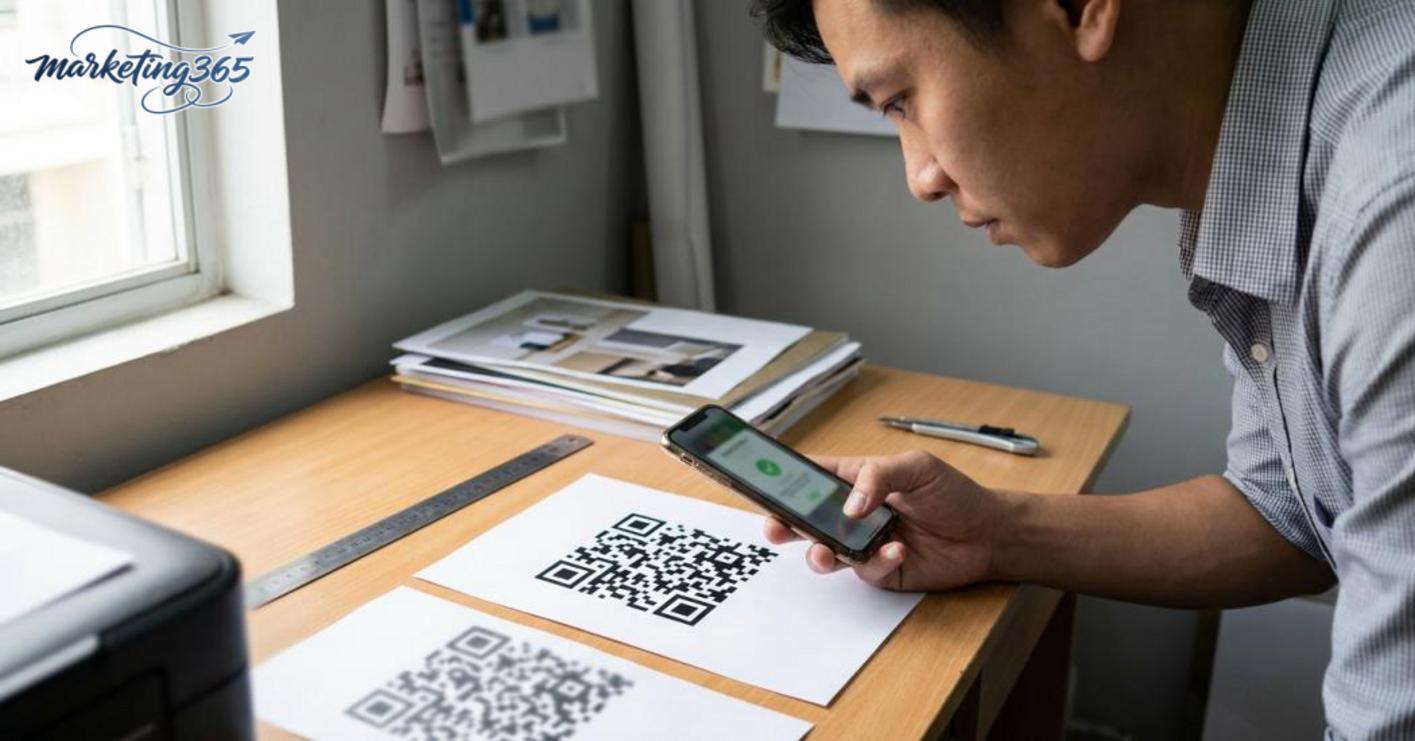
The quick fix is to create a high-resolution QR code for printing from the start, then set a size that fits the use case. If the QR is only printed on a name card, leave enough white space around it and test scanning from several angles before sending the file to print. A very common mistake is stretching a small JPEG image many times larger in the design file; in that case, the edges become jagged and the scanner has trouble recognizing it.
Checklist before printing:
- Open the file at 100% to see whether the edges are sharp.
- Do not use compressed images from screenshots.
- Print a test on plain paper before running a large quantity.
Colors, logos, or backgrounds reduce scanability
A QR code with colors that are too light, a logo covering the center, or a busy background will make the camera read slowly and can easily cause QR errors. This often happens when you want to create a QR code with color and logo customization to match the design, but you prioritize appearance over scanability.
The fix is to keep strong contrast between the code and the background. White or very light backgrounds are still the safest choice. If you add a logo, place it only in the center, keep it small, and test-scan it on at least two devices. Avoid overlays, shadows, textures, or background images behind the code. A QR code that looks good but takes 2-3 scans to work should be adjusted.
The destination content is wrong or the link is broken
If the QR code still looks correct but sends users to an error page, blank page, or non-existent page, the problem is the URL, not the code. When using a free QR code generator for a link, the issue is often a wrong shortened link, a mistyped URL, or a landing page that has changed address.
The checking process should be done in this order:
- Open the link directly in a browser before creating the code.
- Paste the URL again and check each character.
- Test-scan the code after publishing, not only before exporting the file.
- If you use a temporary landing page, confirm that the page is public.
For QR codes used for documents, business cards, or campaign landing pages, a single wrong character can break the entire flow of traffic.
How to use QR codes in real marketing while keeping accounts and data safe
QR codes work best in marketing when they are placed at the right touchpoint, lead to the right destination, and do not expose data or break links. For small teams, the safest approach is to use a free QR code generator to create and check the destination link before printing, and only update content in codes that can be edited.
Where to place QR codes to increase scan rates
QR codes should be placed where users have enough time to pause and enough reason to scan. Packaging, menus, standees, receipts, profiles, flyers, and sales slides often perform better because they sit right at the decision point.
Some easy-to-apply principles:
- Leave clear space between the code and the edge of the material, avoiding placement too close to the border or where it may bend.
- Choose a size that is large enough for the print environment; business cards only need to be compact, while banners or standees must be enlarged so they can be scanned from a distance.
- Place a call to action right next to the code, such as “Scan to view the price list,” “Scan to download the PDF,” or “Scan to add to contacts.”
- If you are making a free online QR code for a post or PDF file, test it on 2 different devices before publishing.
Read more: How to Set Up a Chatbox on a Website Easily and Safely
For example, a flyer that places the QR code in the bottom corner without any prompt is often ignored. With the same content, if you move the QR near the benefit headline and add a short instruction line, scan rates often improve because readers know what they will get after scanning.

When to change QR content and when to keep it unchanged
You should change QR content when the destination changes, the campaign ends, or the PDF document has been updated. If you keep an old code pointing to a URL that has changed, scanners will hit an error or land on the wrong content, especially with printed materials used for a long time.
The decision is fairly simple:
- If it is used for a short-term promotional link, set a review deadline before reprinting.
- If it is a long-term code for a business card, Wi-Fi, or company introduction, prioritize a stable destination.
- If you need to change the content without reprinting, choose a QR code generator or free QR code generator that supports editing the destination link.
- Before changing it, open the link on a phone and check loading speed and file access permissions.
For codes used to create a free QR code for a link, create a free QR code for Wi-Fi, or create a free QR code for a PDF document, the stability of the destination matters more than decorating the code. A beautiful code with a broken link is still an operational risk, while a simple code that leads to the right destination is safer and easier to measure.
How to decide on the right tool: start free or upgrade?
A free QR code generator is often enough for simple needs, infrequent changes, and no deep tracking. Once you have more campaigns, need to change links often, or manage many codes, that is when you should consider upgrading.
When the free version is enough
A free QR code generator is suitable when you need to create codes for fixed links, Wi-Fi, downloadable documents, or small-scale printing. A free QR code generator website or free QR code generator software can help you create quickly, check whether it scans, and then place it into posters, menus, or flyers.
- Define the content to encode: link, Wi-Fi, downloadable file, or registration form.
- Use a free QR code generator to create a static code and test-scan it with 2 different devices, for example iPhone and Android.
- Print a small test first, then place it on a menu, standee, or flyer to check scanning distance.
- If the code does not need editing after printing and the quantity is only a few codes, the free version is enough.
The signs that it is enough are quite clear: the code does not need editing after printing, the quantity is small, no advanced reporting is needed, and the person in charge only wants to create a free QR code online in a few minutes. For example, creating a free QR code for Wi-Fi or a free QR code for a link usually only requires the correct content, the right size, and reliable scanning on a phone.
When to upgrade the tool
You should upgrade when you are running multiple campaigns at once, need to change links frequently, or want to know which code gets scanned more often. A paid QR Code generator is often more suitable because it is easier to manage many codes, edit content flexibly, and track data by group.
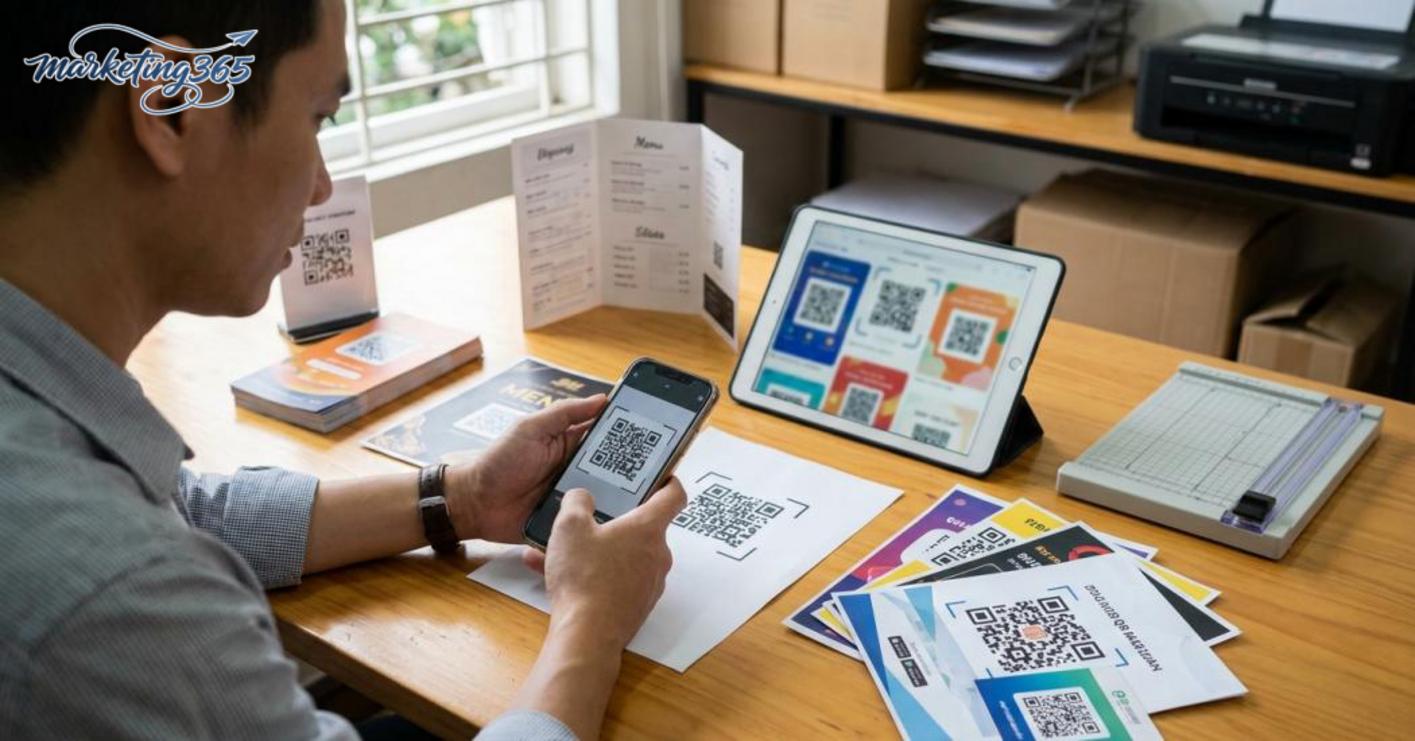
- If you need to change the destination after printing, choose a dynamic QR code so you can update the link without reprinting the entire material.
- If multiple people on the team are working together, prioritize a tool with permissions and edit history to avoid overwriting.
- If you need large-format printing for banners or POSM, check for SVG export or high-resolution PNG so the code does not pixelate.
- If you need to manage 20 codes or more, a campaign tracking table will be much easier than the free version.
Another sign is that you need color and logo customization, clearer export files for printing, or data tracking by campaign. In that case, a free QR code generator is still useful for quick testing, but an upgraded solution will save more time for a small team.
Frequently asked questions about free QR code generators
A free QR code generator is usually enough to create QR codes for links, Wi-Fi, PDFs, and business cards if you need quick scanning, convenient sharing, and no advanced management. For small teams, it is a fast way to test before deciding whether a paid version is needed.
Can a free QR code generator create codes for links, Wi-Fi, PDFs, and business cards?
Yes. Most free QR code generators support creating free QR codes for links, free QR codes for Wi-Fi, free QR codes for PDF documents, and even free QR codes for business cards.
- Links are suitable when you direct people to landing pages, menus, forms, or sales pages.
- Wi-Fi is suitable for cafés, offices, and internal events.
- PDFs are suitable when you want to link to catalogs, price lists, or company profiles.
- Business cards are suitable when you need to save contact information quickly on a card.
Do I need to add a logo or customize the color?
It is not required, but it is worth considering if the QR is used for brand recognition. A QR code with a small logo in the center and clear contrast is often easier to recognize on posters, standees, or packaging. Do not choose colors that are too light or a logo that covers too much scanning area, because the reader may slow down.
Can a free QR code be printed?
Yes, if the exported file is sharp enough. When printing, prioritize creating a high-resolution QR code for printing and test-scan a draft before mass printing. If the QR is printed on a small box, hang tag, or tabletop menu, leave enough white space around it to avoid scanning errors.
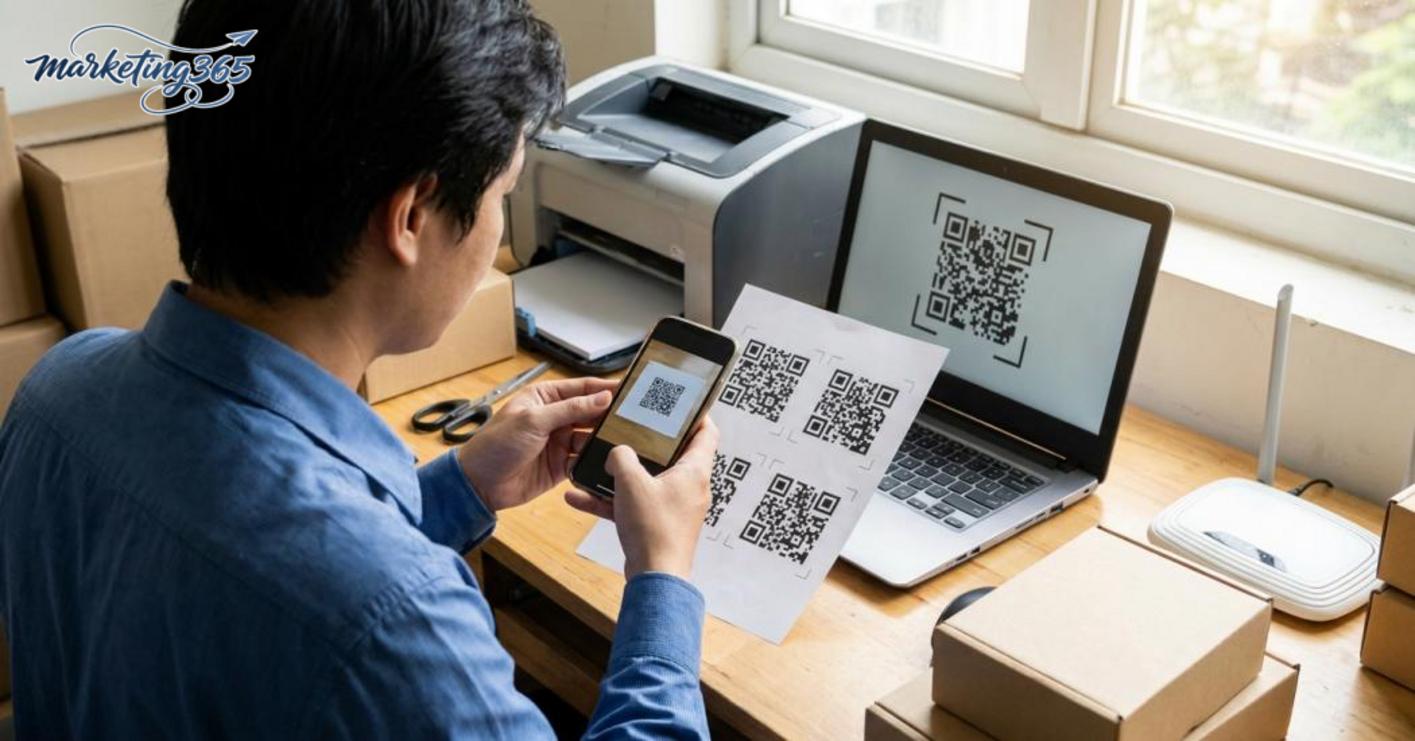
Is it safe to use a free QR code generator?
It is safe at a basic level if you only create QR codes that point to trusted links and do not grant unnecessary account access. Before using it, check the destination URL, avoid pasting unclear shortened links, and test-scan with a separate phone. If the QR supports an important campaign, check the landing page again after creation to avoid a wrong link.
Should I choose a free tool or switch to a paid version?
Choose free when you only need quick creation, a small quantity, and no deep tracking. Switch to a paid version when you need to edit QR codes after printing, track scan counts, or manage multiple campaigns at once. If you only need one stable code, the free version is usually enough; if the QR is tied to revenue, better management capabilities should be prioritized.
MARKETING365
📧 Email: lienhe@marketing365.vn
🌐 Website: https://marketing365.vn
👍 Fanpage: https://facebook.com/marketing365.official
For the latest official guidance, you can also refer to materials from Think with Google.
Related articles
- Free Video Design Software: How to Choose and Use It
- What is CRM? Customer relationship management
- How to Install a Chatbox on a Website Easily and Without Errors
You can also read more articles on the same topic in the Martech Tools category.