
Contents
- What is linking TikTok Shop to a personal TikTok account, and when is it used?
- What should you prepare before accepting or creating a link?
- Step-by-step: how to link TikTok Shop to a personal TikTok account
- What should you check after linking is complete?
- Common errors when linking TikTok Shop to a personal TikTok account
- Notes for linking safely without affecting shop operations
- Frequently asked questions about how to link tiktok shop with tiktok personal account
People who need to connect a personal TikTok account with TikTok Shop are usually shop owners, channel admins, or affiliates who want to manage sales more efficiently and avoid mistakes. How to link TikTok Shop to a personal TikTok account only makes sense when the account is eligible, the management rights are clear, and you confirm the linking request correctly in the app. Done properly, the personal profile will be connected to the Shop to help with product posting, order tracking, and smoother channel operations. Done incorrectly, it can misalign admin rights, accept the wrong request, or force you to check the settings repeatedly.
What is linking TikTok Shop to a personal TikTok account, and when is it used?
Linking TikTok Shop to a personal TikTok account means attaching Shop management rights to a personal TikTok profile so you can operate in the app, confirm permissions, and sync sales information. How to link TikTok Shop to a personal TikTok account is commonly used when you need to manage products, check order status, or verify the rights of the person running the channel.
How are TikTok Shop and a personal account different?
A personal account is a profile used to post content, interact, and operate in the app; TikTok Shop is where products, orders, and selling permissions are managed. When you connect TikTok Shop to a personal TikTok account, you are linking two roles: one is the operating profile, and the other is the shop management system.
Shop owners usually need full rights to approve the connection, while marketers or admins only need the assigned permissions to coordinate product posting, update information, or check the connection status. If you only watch videos with a personal account, you do not need to connect TikTok Shop to your TikTok account yet.
When should you link immediately, and when is it not necessary yet?
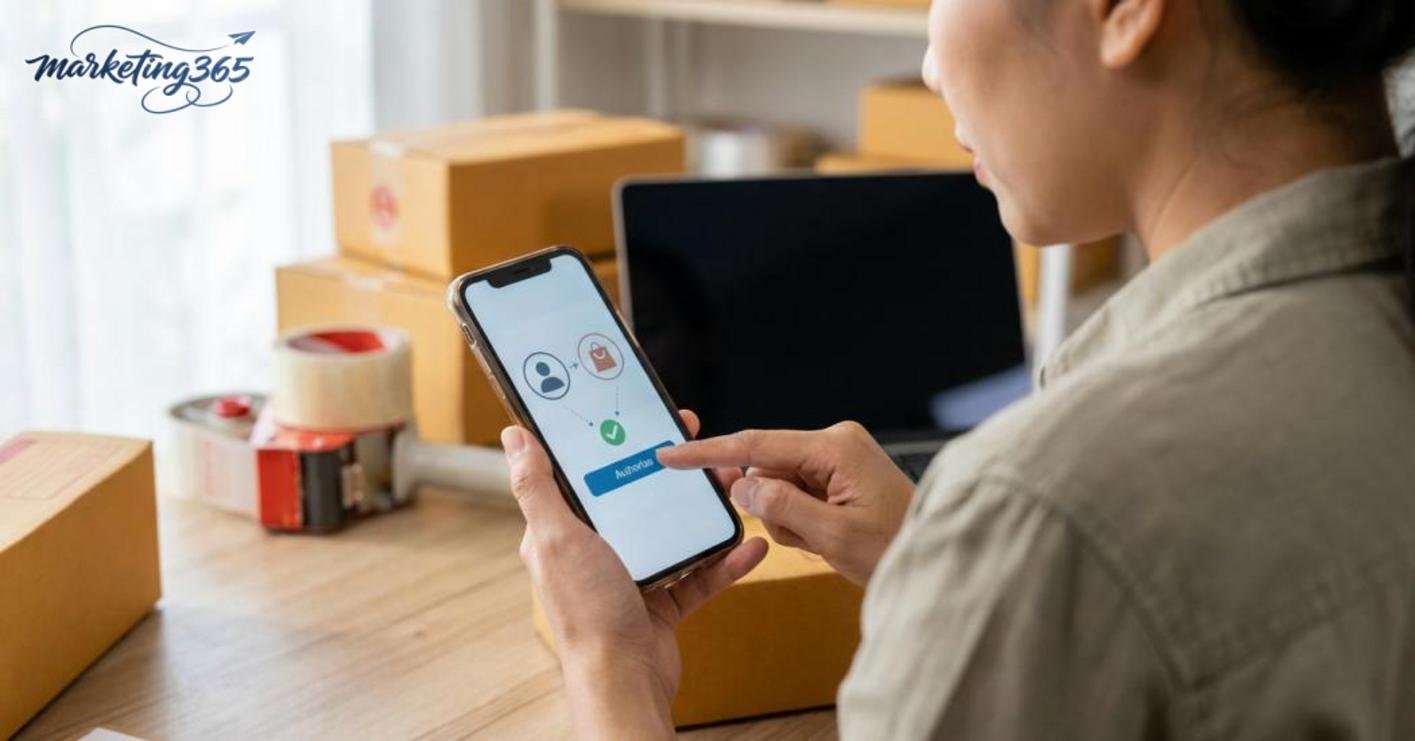
You should link immediately when you need to manage the shop from a personal profile, do affiliate marketing, confirm a TikTok Shop linking request in the TikTok app, or handle situations that require syncing sales activity between the app and the admin panel.
If you are preparing to do affiliate marketing, want to receive sample products, or need a personal account to approve a TikTok Shop linking request, linking is a step you should do early. On the other hand, if you only use your personal TikTok account to watch content, follow trends, or do not yet have shop operating rights, there is no need to add a TikTok account to TikTok Shop right away.
What should you prepare before accepting or creating a link?
Before tapping accept or create link, you need to check the correct account, the correct permissions, and the correct shop status to avoid sync errors. With how to link TikTok Shop to a personal TikTok account, most issues come from being logged into the wrong profile, lacking admin rights, or using an outdated app.
Checklist for account and access rights
Make sure you do these 5 things before touching the linking screen:
- Log in to the correct personal TikTok profile that needs to be connected to the Shop, especially if the device has multiple accounts.
- Confirm that you are in the correct shop/seller; if you are an admin account, you must have enough rights to accept the TikTok Shop linking request.
- Update the TikTok app and the shop management app to the latest version to avoid confirmation screens displaying errors.
- Check the shop status: still active, not restricted from actions, and not stuck in verification.
- Prepare reference information such as the shop name, personal account, email, or verification code if the system requests it.
A very common mistake when adding a TikTok account to TikTok Shop is seeing the right name but actually opening the wrong secondary profile. If in doubt, log out and sign back in to each account one by one to compare.
When should you stop to check for system or shop-permission errors?
Stop immediately if the confirmation request does not appear, the TikTok Shop linking QR code cannot be scanned, the shop does not appear in the list, or the status does not sync after you tap through. These are usually signs of permission issues, login session errors, or shop data that has not updated yet.
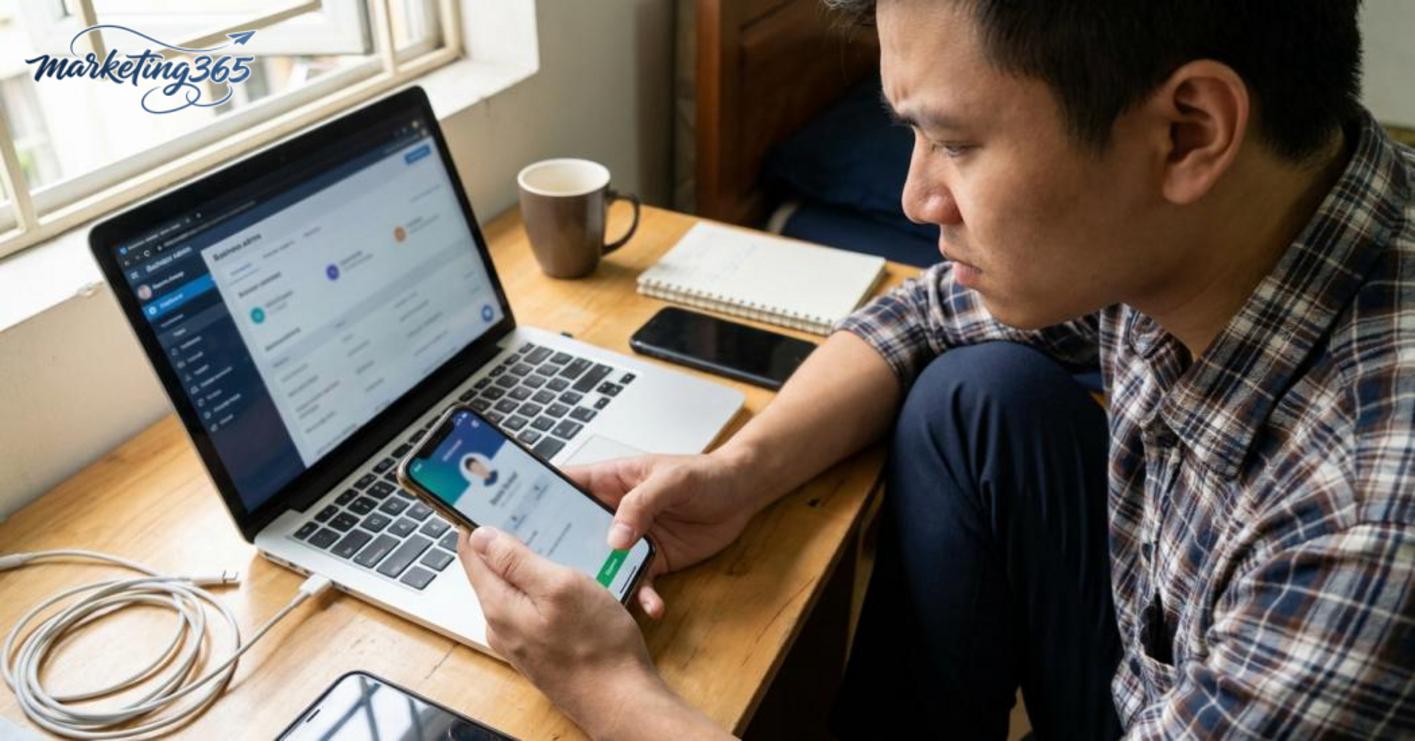
The order of troubleshooting should be: refresh the app, check the network, log out and log back in, then try confirming the TikTok Shop link in the TikTok app again. If it still fails after a few minutes, do not keep tapping repeatedly; check the admin rights of the account you are using and the status of the personal TikTok profile linked to the Shop before continuing.
Step-by-step: how to link TikTok Shop to a personal TikTok account
How to link TikTok Shop to a personal TikTok account is the process of confirming permissions between two accounts so the personal TikTok profile is attached to the correct Shop and the management status appears in the app. You only need to do 3 steps: open the linking request, confirm the correct logged-in account, then check that the connection was successful. If you use the wrong login session or tap the wrong notification, the link usually will not complete.
Read more: How to Handle Negative Shopee Reviews Effectively
Step 1: Open the correct linking request in the app
The TikTok Shop linking request is usually found in the inbox, system notifications, or the Shop management area. Open the notification with the Shop name or management account, rather than tapping other promotional notifications. On some accounts, the screen will show an accept-link button directly in the app.
Step 2: Confirm the correct personal TikTok account that is logged in
Before tapping accept, check the profile picture, display name, and username of the account that is currently open. This is an important step because many users log into multiple accounts on the same device. If you confirm the wrong one, the Shop will be connected to the wrong profile and you will have to remove it and do it again. After confirming, wait a few seconds for the system to update the status.
Step 3: Check that the connection was successful
Go back to the management page or the personal TikTok profile to see whether the status shows linked, successfully connected, or has Shop management rights. If the status has not changed, refresh the app, check the network again, and log out and back in with the correct account. In many cases, the delay only lasts a few minutes, but if it still fails, you should create a new linking request.
How to link using a QR code when the system requires scanning
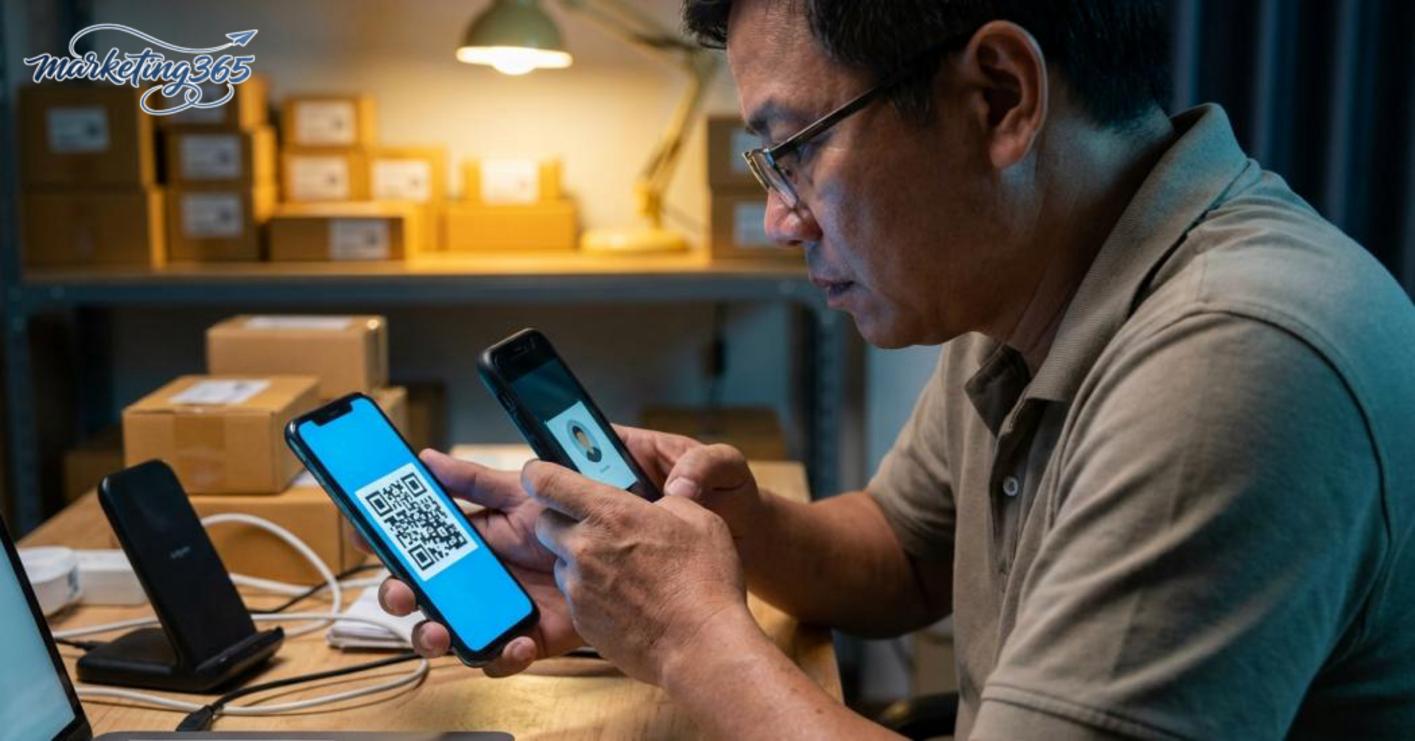
How to link TikTok Shop to a personal TikTok account using a QR code is the method used when the system switches to a quick verification step on two devices. You need to follow the correct order to avoid the code expiring.
1) Open the screen displaying the QR code on the device creating the linking request.
2) Use the other device to open the camera or scanner in the TikTok app to scan the code.
3) Recheck the username and profile picture, then tap confirm.
If the QR code is invalid or has expired, create a new code and scan it again right away. If it scans but still does not connect, check the screen brightness, network connection, and login session of the personal TikTok account. If you used the wrong account, log out before trying again to avoid connecting the wrong profile.
What should you check after linking is complete?
After linking is complete, you need to check the profile, management area, and operating permissions right away to confirm that the TikTok Shop link in the TikTok app is truly active. The goal is to avoid tapping through and still not seeing the shop, not having permission to edit products, or having a pending link request stuck.
Signs that the link was successful
Linking TikTok Shop to a personal account is considered successful when the shop or management account appears correctly in the management area, there is no longer a pending status, and the operating role matches the assigned permissions. You can open the personal TikTok profile linked to the Shop to see whether the shop icon, product section, or management entry appears.
Some easy-to-check signs include:
- The profile now shows shop-related information.
- The management page no longer asks you to accept the TikTok Shop linking request.
- The correct user role can view or edit products.
If you just added a TikTok account to TikTok Shop, check both the profile and the admin area right away to avoid confusing a sent request with a completed confirmation.
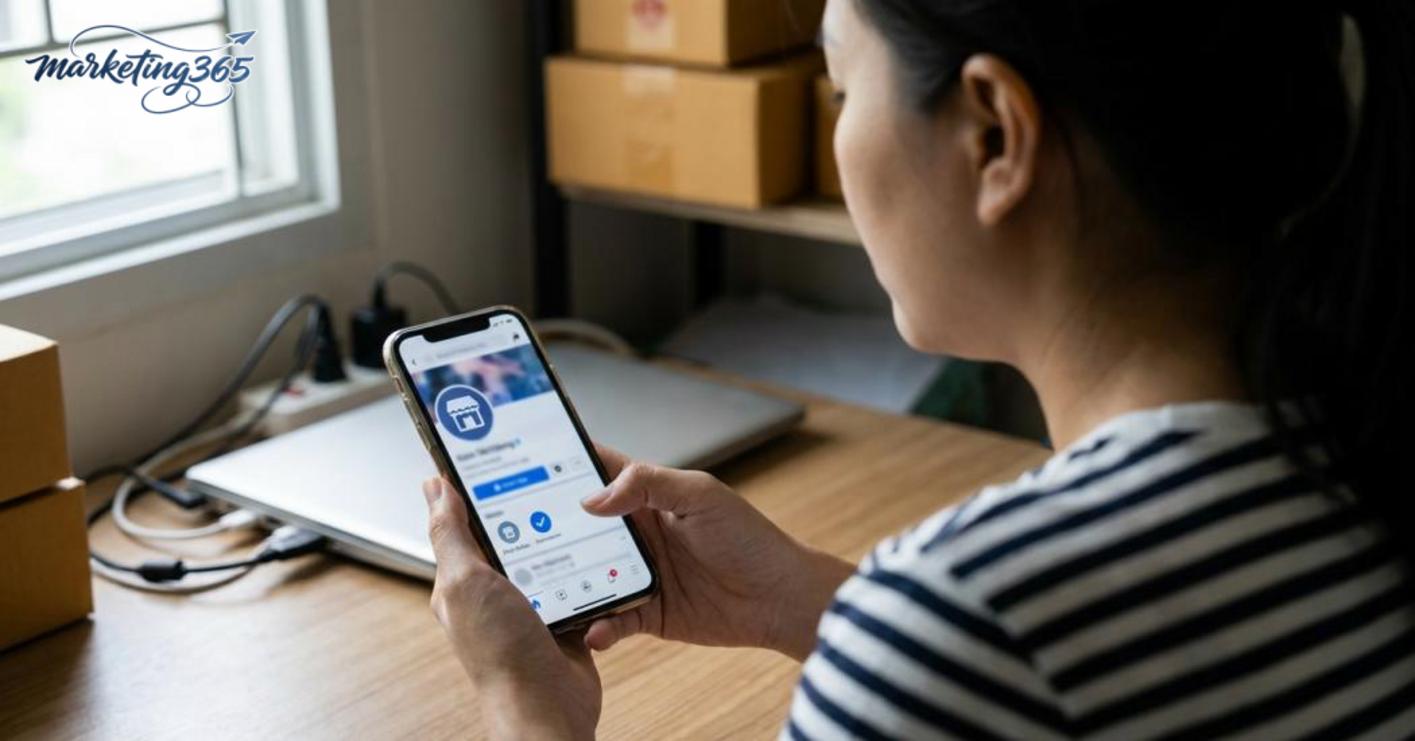
What should you check if the link is complete but still not synced?
If the link is complete but still not synced, check in this order: log out and log back in, confirm you are using the correct profile, review the account’s role permissions, wait a few more minutes for the system to update, then check the network connection and shop status. When linking a TikTok Seller account with a personal TikTok account, data often does not appear immediately if an old login session is still hanging.
Read more: How to Sell Effectively on Facebook Marketplace
Quick troubleshooting checklist:
- Refresh the app and log in again.
- Open the correct personal TikTok profile linked to the Shop.
- Check the permissions to view/edit products.
- Wait a short while longer for syncing before concluding there is an error.
If you still do not see it after these steps, the issue is usually with the link request status or permissions not being fully confirmed, not necessarily a serious error.
Common errors when linking TikTok Shop to a personal TikTok account
Errors when linking TikTok Shop to a personal TikTok account usually fall into three groups: wrong profile, missing permissions, and system sync issues. The safe way to handle them is to check the correct account first, then try confirming the TikTok Shop link in the TikTok app again. If the link is complete but still unusable, do not keep tapping repeatedly; review each bottleneck in order below.
Wrong account or wrong profile is logged in
This is the most common error when doing how to link tiktok shop with tiktok personal account. The user thinks they are in the correct personal TikTok profile linked to the Shop, but in fact they are logged into a secondary or old account.
The signs are very clear: the display name does not match the shop, the avatar looks different from usual, or you have already accepted the TikTok Shop linking request but the shop still does not appear in the management section. Before continuing, log out and compare 3 things: the phone number/email currently logged in, the profile name, and the shop attached to that profile. If you manage multiple channels, it is best to open a separate login session to avoid confusion.
Missing admin rights or linking permissions
This error is usually not in the app but in the user role. When linking a TikTok Seller account with a personal TikTok account, if the account only has view-only or secondary permissions, you may not see the confirmation button, may not see the shop that needs linking, or may not get through the final step.
A quick check is to compare the permissions in the shop management system with the person performing the action. If you are not the admin or the person granted linking rights, you need to ask the shop manager to assign the correct role before trying again. In teams with multiple operators, this is a more common cause than technical errors.
Link stuck, not syncing, or showing an unusual error
If everything is done correctly but the TikTok Shop linking QR code cannot be scanned, the page keeps loading, or the confirmation request does not appear, think of a sync issue. This usually happens after using an outdated app, weak network, or a temporarily broken login session.
The safe way to fix it is to follow this order:
- Switch to a more stable network.
- Update the app and log in again.
- Reload the TikTok Shop acceptance flow in the TikTok app.
- Check system notifications for maintenance or interruptions.
Do not keep resending repeatedly. If it still hangs after a few minutes, pause and try again after the login session has been refreshed.
Notes for linking safely without affecting shop operations
Safe linking means keeping permissions to the minimum necessary, confirming only the correct role, and not connecting too many accounts when the purpose is unclear. With how to link tiktok shop with tiktok personal account, the most important principle is to separate admin rights, affiliate marketing rights, and sales support rights to avoid mixing up the scope of actions.
Safety checklist before confirming:
- Check which account is requesting the link, whether it is for TikTok affiliate or for shop operations support.
- Read the role shown on the confirmation screen carefully; if it shows more permissions than you actually need, stop and adjust it.
- Only use the TikTok Shop linking QR code or accept the TikTok Shop linking request when you initiated the request yourself.
- Avoid adding a TikTok account to TikTok Shop by trying repeatedly, because it can easily confuse permissions and be hard to undo later.
- If your goal is to make money on TikTok Shop, prioritize confirming the correct personal TikTok profile linked to the Shop before posting products or receiving TikTok sample products.
Read more: How to Create Shopee Discount Codes in Seller Center
A common mistake is using one profile for multiple goals at the same time: doing affiliate marketing, handling orders, and keeping admin rights. In that case, one wrong role confirmation can throw off the workflow immediately. A safer approach is to separate the goals from the start, then proceed with connecting TikTok Shop to a personal TikTok account according to the exact permission scope you need.
When should you ask someone experienced for help?
You should ask for help when the shop has multiple roles, multiple admin accounts, or repeated errors after basic checks. A common case is linking TikTok Shop to a personal account successfully but the displayed permissions are wrong, or one account is doing both TikTok affiliate work and sales operations, causing the process to overlap.
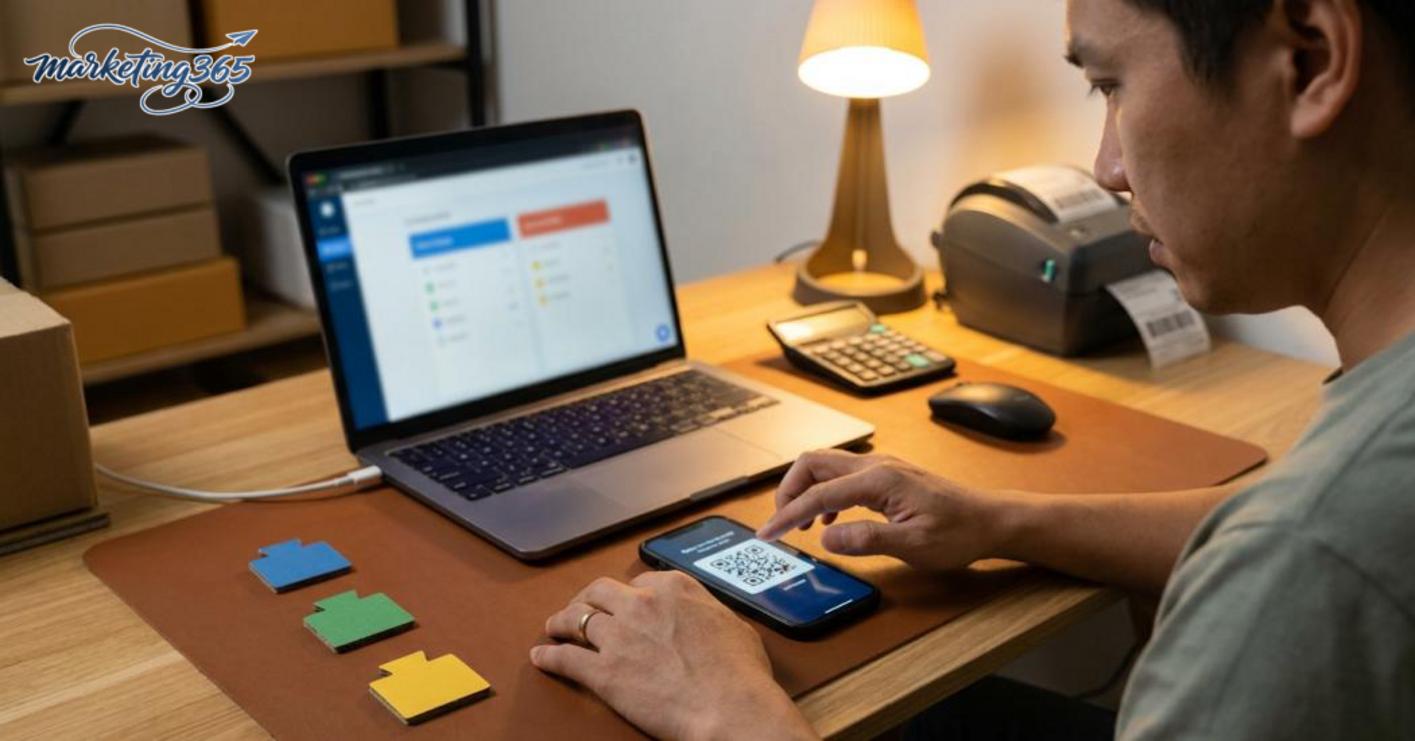
If you need to cross-link multiple accounts, or need to reorganize TikTok Shop linking permissions in the TikTok app in the correct order, an experienced person can help reduce operational risk. For a small shop with only one manager, handling it internally is usually enough; but when there are multiple admins, a clear process should be prioritized over speed.
Frequently asked questions about how to link tiktok shop with tiktok personal account
Linking TikTok Shop to a personal TikTok account does not automatically remove your account rights, but the displayed permissions and Shop management rights can change depending on the role assigned. If the personal account is only invited to confirm the link, you still keep the right to use your account; Shop editing rights depend on the creator and the permissions set in the system.
- Signs to check immediately: when you open the personal TikTok profile you do not see the Shop icon, but there is still a pending confirmation notice in the management section.
- If you have just changed devices, log in again and check the access permissions in the app.
- When multiple people are operating at the same time, make sure to confirm who is the Shop owner and who only has assigned permissions.
Why is the Shop not showing on the profile after linking? If the Shop does not appear, it is usually because confirmation is not complete, syncing is delayed, or the personal account has not been switched to the correct linked status. For a personal TikTok profile linked to the Shop, reopen the Shop management section in the app, check whether the request has been accepted, then try logging out and logging back in.
- Check three things first: link status, profile visibility permissions, and the app’s network connection.
- If you have already accepted the TikTok Shop linking request but still do not see it, wait a little longer and check again on another device.
- If the profile name or avatar was recently changed, recheck the information sync section.
Can you use how to link tiktok shop with tiktok personal account for affiliate marketing? Yes, but only when the account is assigned the correct role and meets TikTok Shop and marketing account requirements. Connecting TikTok Shop to a personal TikTok account for affiliate work usually requires the personal account to have confirmed the link first, and only then can you check the rights to attach products or receive marketing tasks.
- If you can see the Shop but not the affiliate section, the affiliate permission may not have been enabled yet.
- Do not confuse “linked” with “eligible to earn money”; these are two different steps.
- When doing affiliate work for multiple Shops, check each permission for each account to avoid attaching the wrong one.
When should you check access rights again? You should check access rights again immediately after changing your password, changing devices, losing the Shop icon, or being unable to enter the link management section. These situations often cause the connection between TikTok Shop and the TikTok account to be disconnected or temporarily downgraded.
- Check again after updating the app.
- Check again when someone else is also managing the Shop.
- Check again if the link status appears differently in the app and the management page.
For the latest official guidance, you can also refer to TikTok for Business.
Related articles
- How to Handle Negative Shopee Reviews
- How to Handle Negative Shopee Reviews Effectively
- Secrets to Selling Thousands of Orders on Lazada for New Shops
You can find more practical marketing guides at https://marketing365.vn.
Content from marketing365 is created for SMEs, online shop owners, and new marketers.
You can also read more articles on the same topic in the Ecommerce Marketing category.